Getting Started
A touchscreen media controller for Home Assistant: album art, track info, and touch controls for any media player in your smart home. Built with ESPHome and LVGL.
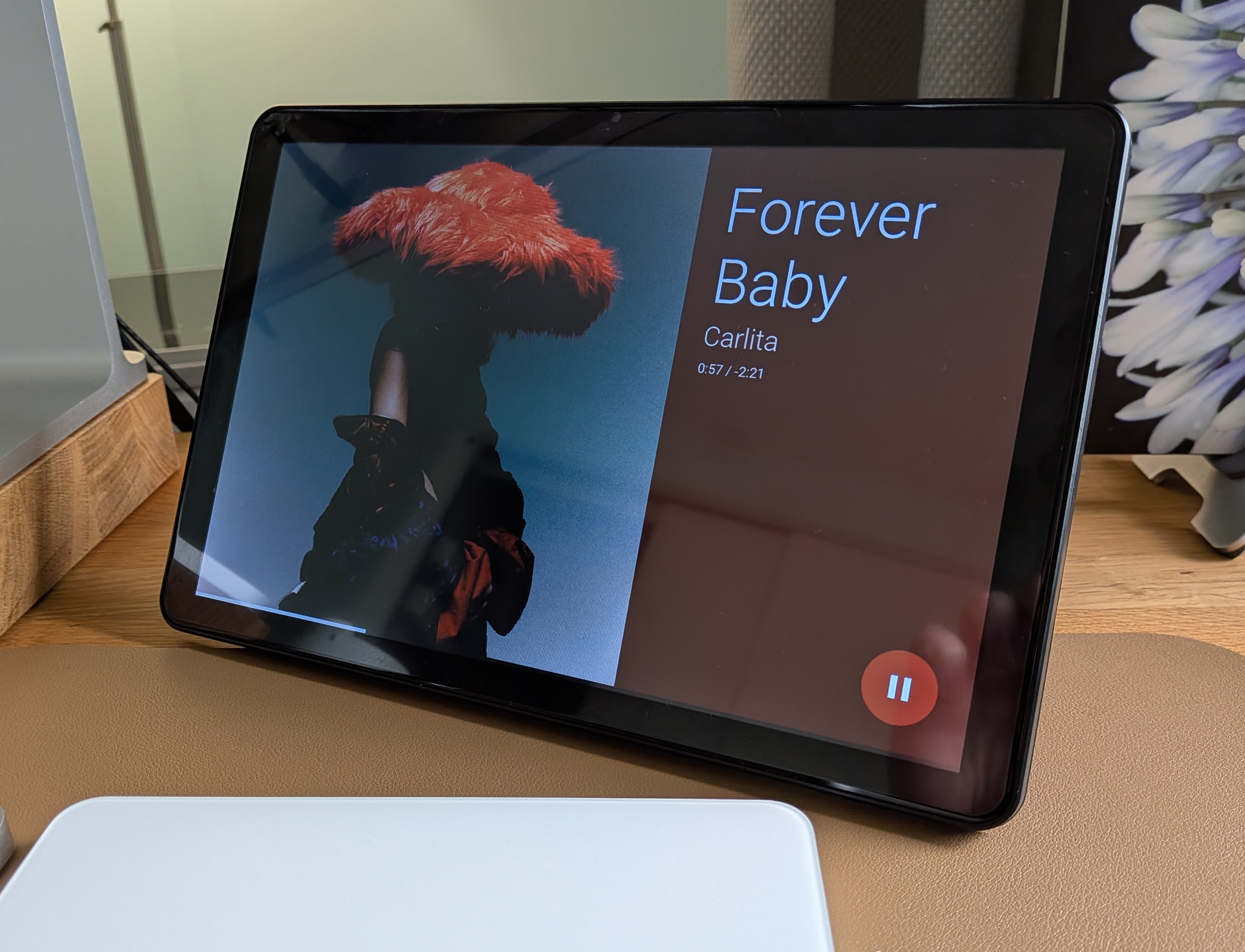
Guition ESP32-P4 JC8012P4A1 (10.1")
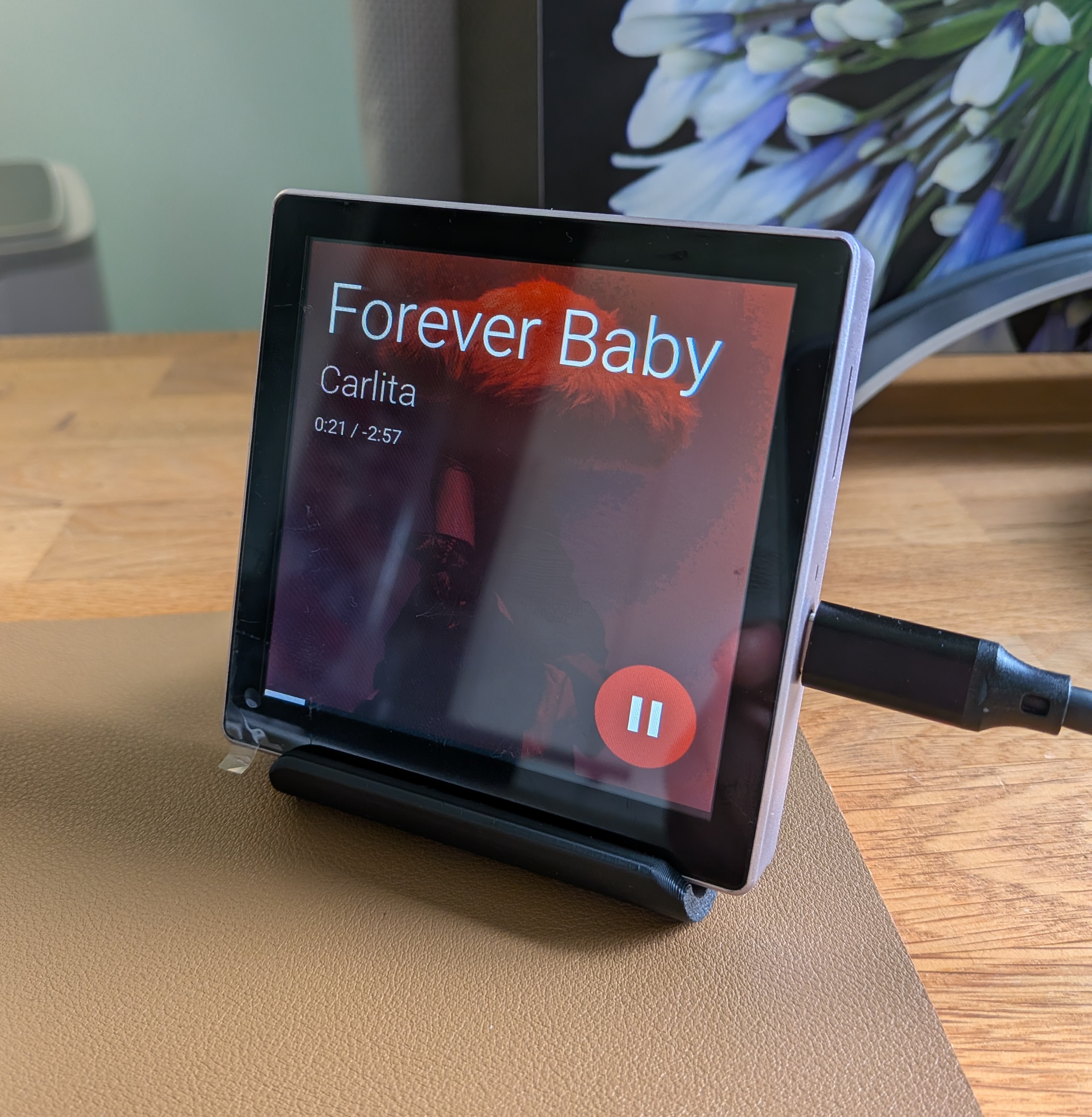
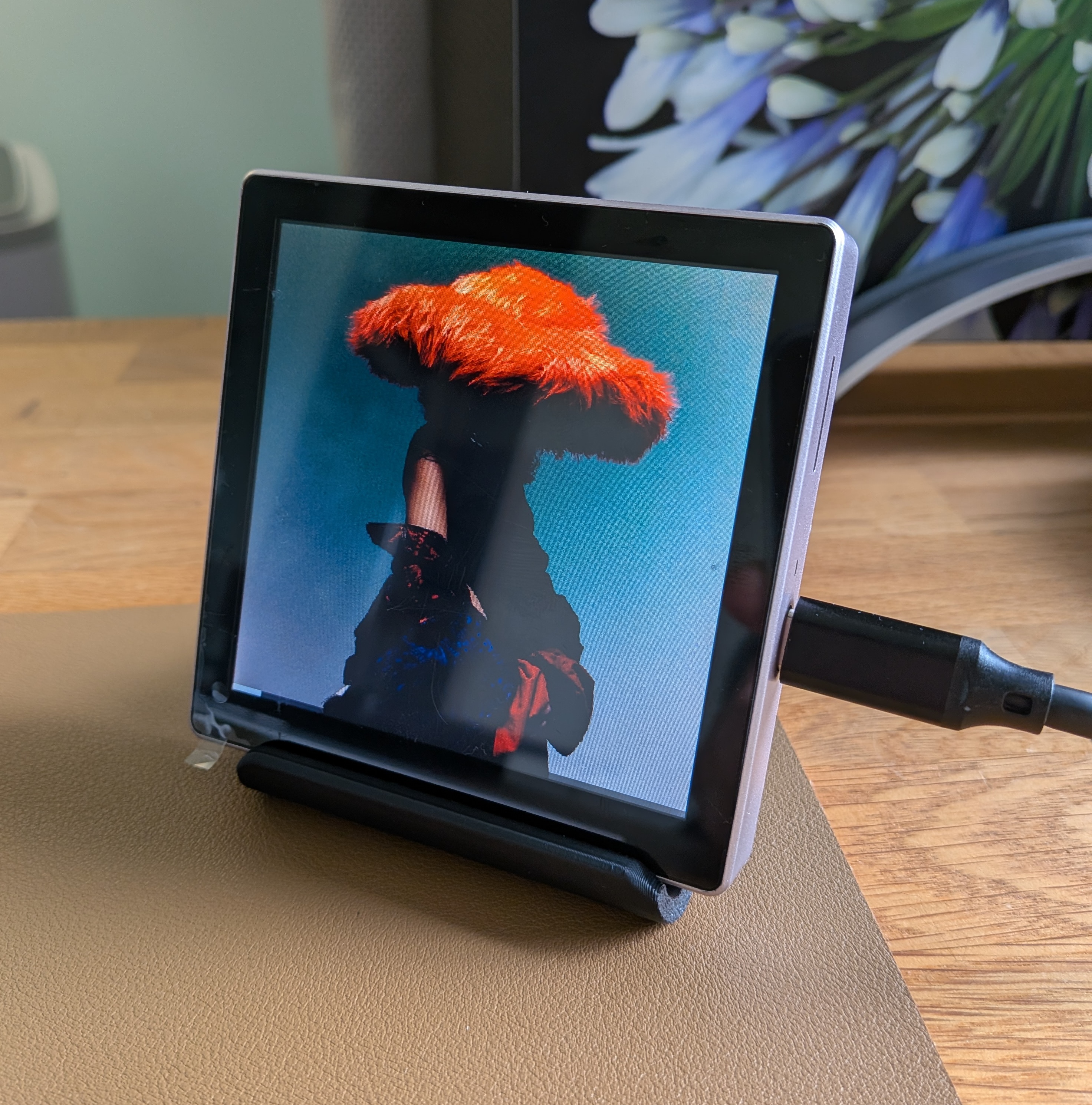
Guition ESP32-S3 4848S040 (4")
What you need
- A supported panel (see Devices)
- USB-C cable
- Google Chrome or Microsoft Edge on desktop (for web flashing)
- Home Assistant with a media player entity already set up
Step 1: Flash the firmware
Connect your panel to your computer via USB-C, select your device from the dropdown below, then click Install.
If the installer doesn’t detect your device, try the troubleshooting section. You may need the CH340 USB driver on your computer.
Step 2: Connect to WiFi
After flashing, the device starts a WiFi hotspot:
- Connect to the hotspot from your phone or computer.
- When the captive portal opens, enter your home WiFi name and password.
- The device restarts and joins your network.
Step 3: Adopt in Home Assistant
When the device is on your network:
- Open Settings → Devices & Services and look for a new ESPHome notification.
- Click Configure and complete the adoption steps.
- The device and its entities will appear in Home Assistant.
Step 4: Select your media player
- Go to Settings → Devices & Services → ESPHome and click your device.
- Under Configuration, find the Media Player field.
- Enter the entity ID of the player you want to control (e.g.
media_player.living_room).
The display will start showing the current track. You can change this later without reflashing. For more detail, see How do I configure a media player?.
Optional: If your speaker has a TV source (e.g. Sonos home theater), you can also set the Sonos Tv Source field to show now-playing info from the TV media player when the speaker switches to its TV input. This is not required — see Settings for details.
Step 5: Enable device controls
To let the panel control play, pause, skip, and volume:
- Go to Settings → Devices & Services → Integrations and click ESPHome (not the device count).
- Find your device and open the cog to edit settings.
- Turn on “Allow the device to perform Home Assistant actions” and save.
If the controls don’t respond, see Controls don’t respond.
Automatic updates
The device checks for firmware updates about every 6 hours. When one is available, a Firmware Update entity appears in Home Assistant; you can run the update from there.
Viewing device logs
Artwork load errors (e.g. when album art fails to download) are logged by the device. To see these messages in Home Assistant for remote debugging:
- Go to Settings → Devices & Services → ESPHome and open your device.
- Click Configure and enable Subscribe to logs from the device.
- When enabled, the device sends logs to Home Assistant. View them in Settings → System → Logs or Developer Tools → Logs. Filter by your device name or search for the
artworktag to find artwork-related errors.
Next steps
- Features — album art, touch controls, screensaver
- Settings — brightness, timeouts, track info
- Manual installation — flash via ESPHome dashboard instead of the web installer
- Troubleshooting — common issues and fixes