ESPHome Media Player for Home Assistant
A touchscreen media controller for Home Assistant: album art, track info, and touch controls for any media player in your smart home. Built with ESPHome and LVGL.
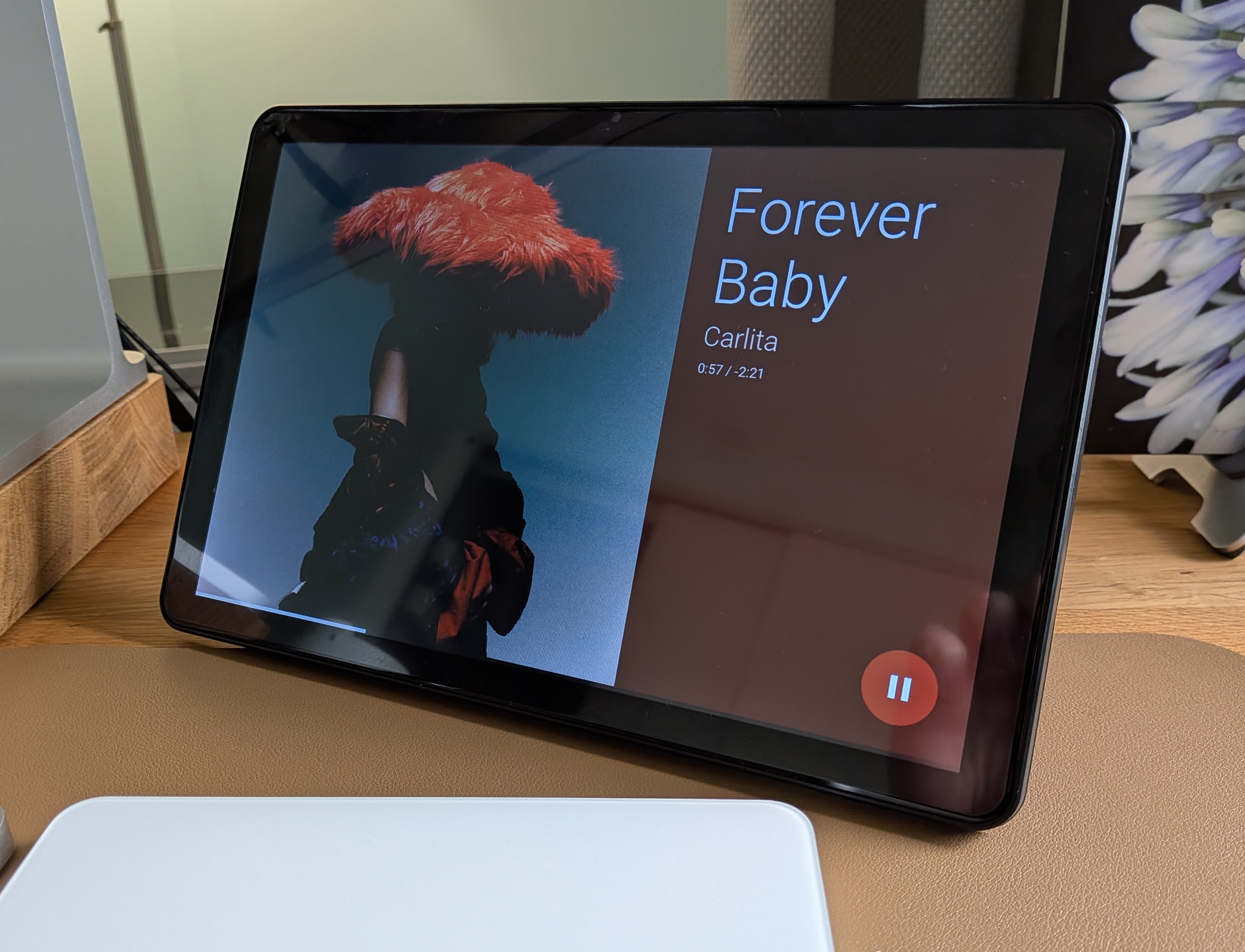
Guition ESP32-P4 JC8012P4A1 (10.1")
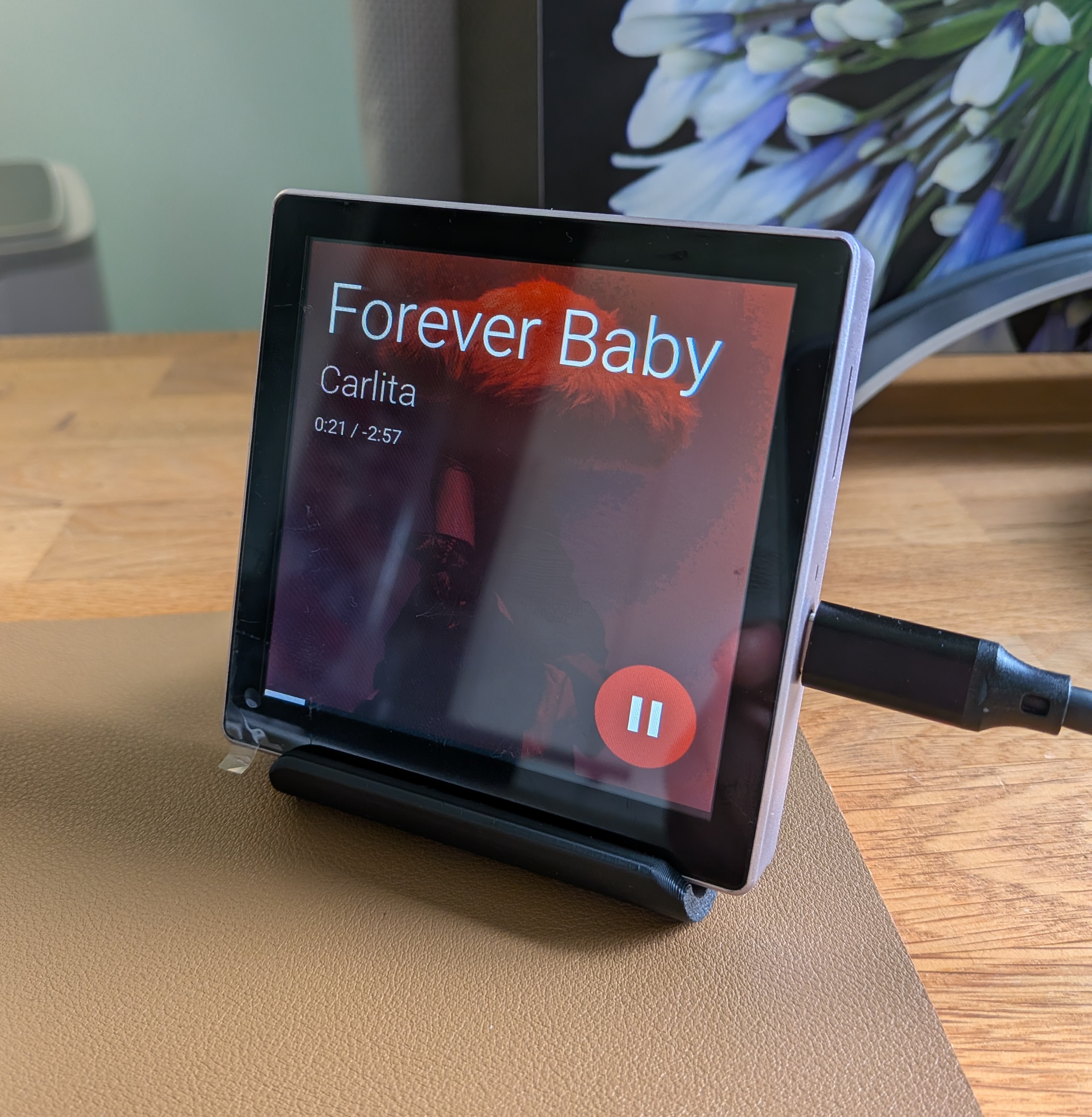
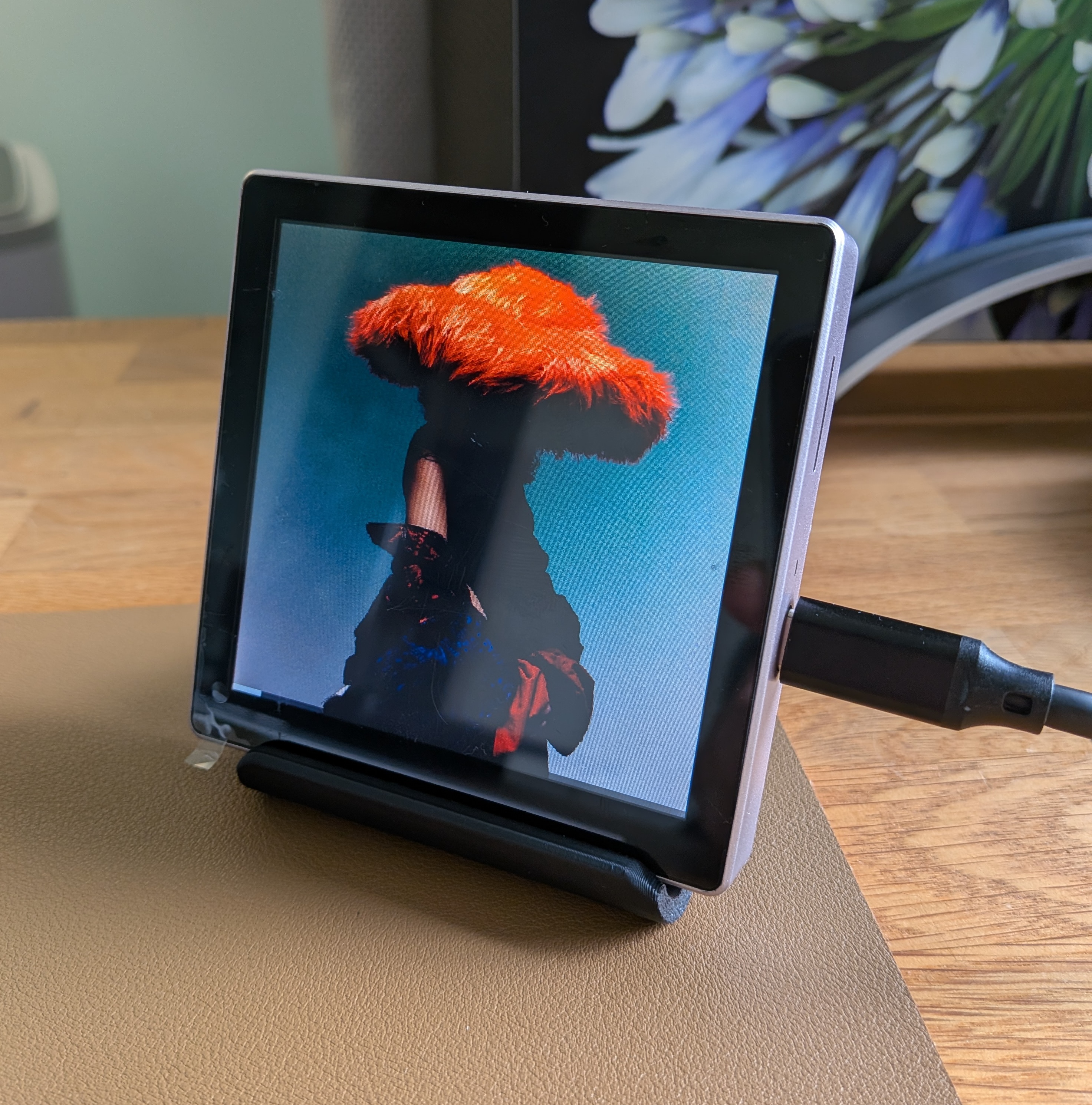
Guition ESP32-S3 4848S040 (4")
Guition ESP32-P4 JC1060P470 (7")
Guition ESP32-P4 JC4880P443 (4.3")
Learn more
- Installation — flash, connect, and configure your device
- Web Settings — configure the device from its IP address
- Firmware Updates — automatic over-the-air updates
- Speaker Grouping — multi-room speaker control
- Screen Saver — dimming, clock, and day/night brightness
- Settings — brightness, timeouts, screen saver, track info
- Manual installation — flash via ESPHome dashboard instead of the web installer
- Troubleshooting — common issues and fixes
Features
Overview of what the media controller does. Many features are user-configurable from the device's web settings page — no YAML or reflashing needed. You can open it by visiting the device IP address directly in your browser, or from the device in Home Assistant under Settings → Devices & Services → ESPHome by clicking Visit. See Web Settings for how to open it and Settings for the full reference.
Album art display
Full-screen album art is loaded from your Home Assistant instance. When a new track starts, the current artwork dims to 40% while the new image downloads, then fades back to full brightness. If artwork doesn't appear, see Troubleshooting.
Now playing info
The screen shows song title, artist, elapsed and remaining time, and a progress bar. The bar updates every second with smooth interpolation between position updates from Home Assistant. Tap the time label to toggle between elapsed/remaining and elapsed/total duration display. The default mode is set by the Track Clock setting in Settings.
Linked media player (optional)
If your speaker has a secondary input — either a TV source (soundbars with HDMI) or a Line-in source (speakers/amps with a 3.5mm/RCA input) — the controller can show now-playing info from the media player connected to that input (e.g. Apple TV, Chromecast). This feature is entirely optional and the controller works without it.
- Automatic switching — when the primary media player's source becomes "TV" or "Line-in", the UI shows title, artist, artwork, and progress from the linked media player. When the source changes back, the UI reverts to the primary player.
- Idle state — when the linked player is idle, off, or on standby, the screen displays the source name ("TV" or "Line-in") on a black background with playback controls hidden. Controls reappear when the linked player starts playing again.
- Routed controls — play/pause, next, and previous are automatically sent to whichever player is active (music or linked).
To enable this, set the optional Linked Media Player field to the entity ID of the media player connected to your input (e.g. media_player.apple_tv). Leave it empty to disable.
Speaker grouping
Group and ungroup multi-room speakers directly from the touchscreen. A speaker icon appears on the main screen — tap it to open a panel listing all your speakers with toggle switches to group or ungroup them.
This feature works with any speaker platform that supports grouping in Home Assistant. Requires a one-time setup of a template helper in Home Assistant — see Speaker Grouping for instructions.
Touch controls
- Play / Pause — button in the bottom-right toggles playback.
- Next / Previous — swipe left or right to change tracks.
- Volume — swipe down to open the settings panel with an arc dial. Drag the knob or use + / − for 1% steps. Swipe up to close.
- Hide / Show UI — tap the screen during playback to hide or show the overlay (4" only).
Firmware updates
The device checks for new firmware automatically and can install updates over-the-air — no USB cable needed. You control the behavior from Home Assistant: enable or disable auto-update, choose a check frequency (hourly, daily, or weekly), and trigger manual installs at any time. See Firmware Updates for details.
Screen saver
When playback is paused, the device dims the screen after a configurable delay, then either shows a clock or turns the screen off. An optional clock screen saver displays the time in large digits on a black background — it drifts subtly to prevent burn-in. Brightness levels and behavior adjust automatically between day and night. Any touch or new media playback instantly wakes the screen.
See Screen Saver for full details and settings.
Screen tone (ESP32-P4)
Album art can be shifted toward warmer colors for a more comfortable viewing experience. Separate day and night warmth sliders follow the same day/night detection used by the screen saver, so the display can look neutral during the day and warmer at night. See Settings to configure.
Support This Project
If you find this project useful, consider buying me a coffee to support ongoing development!
