Settings
Most settings are configurable from the device's built-in web settings page — no YAML or reflashing needed. See Web Settings for how to open it, or go to the device in Home Assistant under Settings → Devices & Services → ESPHome and click Visit.
The web settings page runs on the device's ESPHome web server on port 80. It uses the project's hosted web UI bundle, so the device needs internet access the first time the browser loads the page. On the 4" ESP32-S3 display, opening the web settings page also shows a Web settings active screen on the device while the browser is connected.
Some configuration entities may also appear on the Home Assistant device page, depending on the device model, but the web settings page is the main place to configure current firmware.
Media Player
| Setting | Description |
|---|---|
| Media Player | The primary media_player entity to control, for example media_player.living_room_speaker. Saving a valid entity may reboot the device so the Home Assistant subscription is refreshed. |
Advanced
| Setting | Description |
|---|---|
| Linked Media Player | Optional secondary media_player entity used when the main speaker switches to a TV or Line-in source. Leave empty to disable. Saving a valid entity may reboot the device so the Home Assistant subscription is refreshed. |
Playback
| Setting | Description |
|---|---|
| Track Clock | On shows time remaining; off shows the track length. Tap the time label on the device to toggle this at any time. |
| Show Progress Bar | Shows or hides the playback progress bar. |
| Auto-Show Track Info | Shows track title and artist automatically when new playback information arrives. Turn this off to keep square screens focused on artwork and the progress bar; tap the screen to show or hide the info manually. Shown on the ESP32-S3 4848S040 and ESP32-P4 86 Panel. |
| Track Info Duration | How long track info stays visible after artwork loads or playback starts. Choose Always to keep track info visible and never auto-hide it. Options: Always, 3 seconds, 5 seconds, 10 seconds, 15 seconds, 20 seconds, 30 seconds, or 1 minute. Shown on the ESP32-S3 4848S040 and ESP32-P4 86 Panel. |
Volume
| Setting | Description |
|---|---|
| Speaker Panel Auto-Close | Turns automatic closing of the volume/speaker panel on or off. Default: on. |
| Timer | Time without touch interaction before the speaker panel automatically closes and returns to the now-playing view. Options: 5 seconds, 10 seconds, 20 seconds, 30 seconds, or 1 minute. Default: 10 seconds. |
Idle Screen
| Setting | Description |
|---|---|
| Dim when idle | Turns paused idle dimming on or off. |
| Dim After | Time after playback pauses before the screen dims. Options: 5 seconds, 10 seconds, 30 seconds, 1 minute, 2 minutes, 5 minutes, or 10 minutes. |
| Day Dimmed Brightness | Brightness after the paused dimming timer during the day. |
| Night Dimmed Brightness | Brightness after the paused dimming timer at night. |
Screen Saver
The browser Settings tab groups screen saver controls into idle screen dimming, screen saver timing, and night schedule behavior. See Screen Saver for the full behavior details.
| Setting | Description |
|---|---|
| Screen Saver | Turns the clock/off screen saver step on or off. When off, the browser hides the screen saver options. |
| Start Screen Saver After | Time after dimming before the idle action runs. Options: 10 seconds, 30 seconds, 1 minute, 2 minutes, 5 minutes, 10 minutes, or 30 minutes. |
| Daytime Screen Saver | What happens during the day: Clock, Screen Off, or Disabled. |
| Day Clock Brightness | Backlight level for the daytime clock screen saver. Shown when the daytime action is Clock. |
| Evening Screen Saver | What happens in the evening: Clock, Screen Off, or Disabled. |
| Evening Clock Brightness | Backlight level for the evening clock screen saver. Shown when the evening action is Clock. |
Night Schedule
| Setting | Description |
|---|---|
| Schedule Screen Off | Turns the daily scheduled screen-off behavior on or off. |
| On Time | Hour when the screen becomes available again. |
| Off Time | Hour when the screen turns off for the schedule. |
| When Woken, Idle Time To Screen Off | How long a temporary touch wake lasts during scheduled off hours. |
Device
The browser Device tab contains clock settings, day/night source, active screen brightness, screen tone, supported rotation controls, and firmware update controls.
Clock
| Setting | Description |
|---|---|
| Clock Format | Display the clock screen saver in 24-hour or 12-hour format. The 12-hour format omits AM/PM so the large clock still fits and can drift for burn-in prevention. Defaults to 24-hour. |
| Timezone | IANA-style timezone for the clock and scheduled screen-off controls. The browser shows the current GMT offset. Defaults to UTC. |
Day/Night
| Setting | Description |
|---|---|
| Day/Night Source | Optional binary_sensor or input_boolean entity to control day/night mode (on = day, off = night). Leave empty to use sun.sun (default). See Screen Saver. |
Screen Brightness
| Setting | Description |
|---|---|
| Day Active Brightness | Screen brightness during active use in daytime mode. Default: 100%. |
| Night Active Brightness | Screen brightness during active use in night mode. Default: 80%. |
Screen Tone ESP32-P4 only
Shifts album art toward warmer colors for a more comfortable viewing experience, especially at night. Separate day and night sliders follow the same day/night detection used by screen brightness. The tint updates instantly without reloading the image.
| Setting | Description |
|---|---|
| Day Screen Warmth | Warmth applied to album art during the day. 0% = no tint, 100% = maximum warmth. Default: 30%. |
| Night Screen Warmth | Warmth applied to album art at night. 0% = no tint, 100% = maximum warmth. Default: 60%. |
Rotation supported P4 panels
| Setting | Description |
|---|---|
| Screen Rotation | Rotation control shown only on devices that support changing orientation from the browser UI. Options: 0, 90, 180, and 270. |
Firmware
| Setting | Description |
|---|---|
| Check for Update | Checks public releases without installing. The same browser button changes to Install Update after a newer version is found. |
| Install Update | Installs the checked update when one is available. |
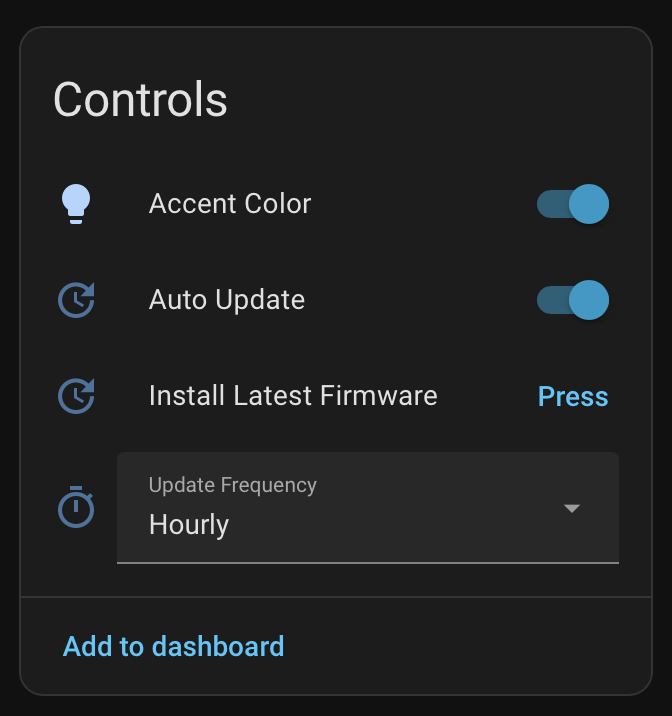
| Auto Update | When enabled, firmware updates are installed automatically when detected. Default: on. |
| Update Frequency | How often the device checks for updates: Hourly, Daily (default), or Weekly. Hidden when Auto Update is off. |
See Firmware Updates for full details.
