Install Espframe on a Guition ESP32-P4 Display
Flash Espframe to a supported Guition ESP32-P4 display from your browser — no desktop toolchain or ESPHome required.
What You'll Need
- Supported Guition ESP32-P4 display, USB-C cable (data-capable), Immich server on your network (immich.app), and an Immich API key
| Model | Panel | Stand |
|---|---|---|
Guition ESP32-P4 10" JC8012P4A1 | AliExpress | MakerWorld |
Connect the Display
The device has two USB-C ports. Plug the cable into the bottom port (labeled USB on the PCB) — the one closest to the edge, next to the USB-A connector. The upper port is for the screen ribbon cable only.
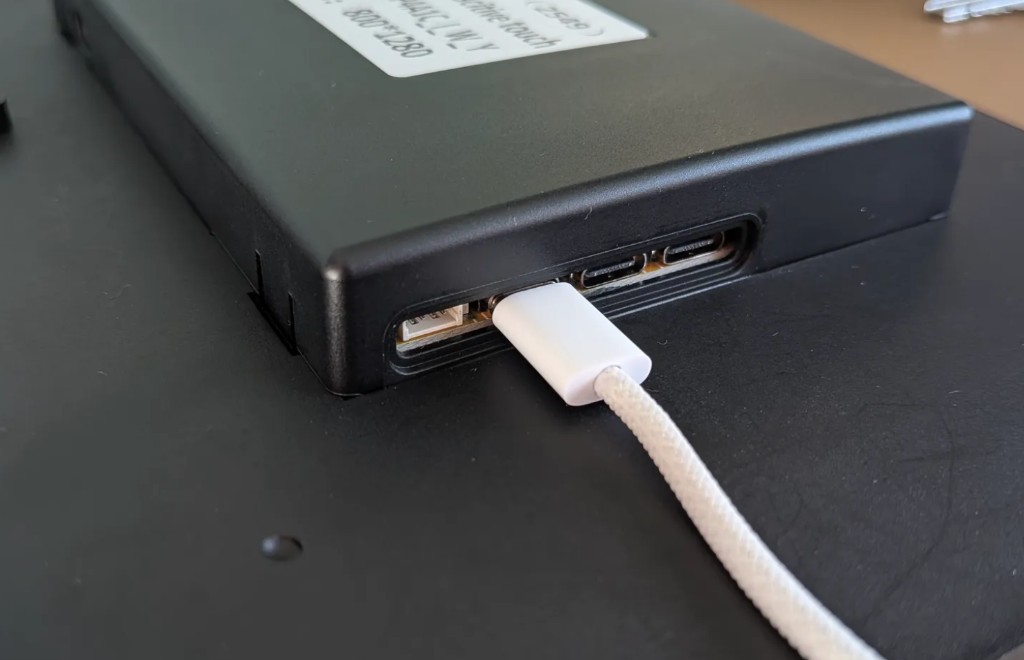
Wrong port?
If flashing fails, make sure you're using the bottom USB-C port as shown above. The upper port will not work for flashing.
Web Installer
Connect the display via USB-C, then click the install button below. Check the model printed in the listing or on the PCB before continuing.
Your browser does not support WebSerial. Use Chrome or Edge on desktop.
Browser
Requires Chrome or Edge (desktop) with WebSerial. Safari and Firefox not supported.
Steps
- Connect — Plug in with USB-C; allow drivers if prompted.
- Flash — Click Install Espframe for Immich, choose the device’s serial port, confirm. Takes a few minutes.
- WiFi — Enter network name and password when prompted. If no prompt appears, the device creates a hotspot named immich-frame-10inch; connect from phone/laptop for captive-portal setup.
- Immich — Open the device IP in a browser (shown on screen), enter Immich server URL and API key. The URL can be an IP address such as
http://192.168.1.30:2283or a domain such ashttps://photos.example.com. See API Key for permissions. Photos start loading. Next: Photo Sources to choose what to display.
Recent firmware notes
- Multiple Person or Album IDs: Saving comma-separated UUID lists uses a POST body so long lists no longer hit 414 URI Too Long. Album IDs and Person IDs are still limited to 255 characters each; see Photo Sources.
- Photo date filters: The web UI now supports fixed date ranges and rolling ranges such as the last 6 months or last 2 years. See Photo Sources.
- ESPHome 2026.4: Current local builds use ESPHome
2026.4.0; manual builds also include compatibility fixes for ESPHome 2026.3 and 2026.4 LVGL changes.
