Firmware Updates
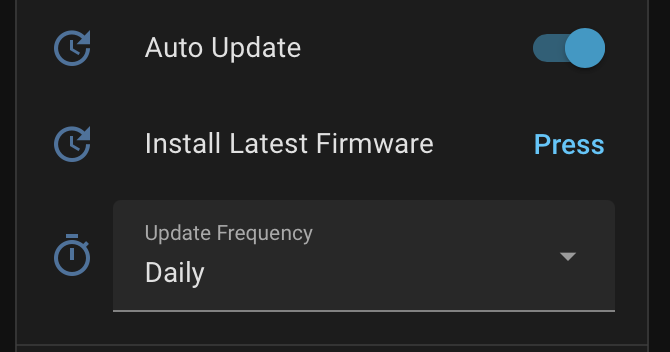
The device checks for firmware updates automatically and can install them over-the-air — no USB cable or reflashing needed. Update behavior is fully controllable from the device's web settings page. You can open it by visiting the device IP address directly in your browser, or from the device in Home Assistant under Settings → Devices & Services → ESPHome by clicking Visit.
How it works
The device periodically checks for a new firmware version from the project's GitHub Pages manifest. When an update is available:
- If Auto Update is enabled, the firmware is installed automatically.
- If Auto Update is disabled, the update appears in Home Assistant as available but is not installed until you choose to.
The check frequency is controlled by the Update Frequency setting. Between checks, the device counts hourly intervals and only contacts the server when the threshold is reached, keeping network traffic minimal.
Settings
All settings are available on the device's web settings page.
| Setting | Description |
|---|---|
| Auto Update | When enabled, firmware updates are installed automatically as soon as they are detected. When disabled, updates are reported but not installed. Default: on. |
| Update Frequency | How often the device checks for updates: Hourly, Daily (default), or Weekly. Hidden when Auto Update is off. |
| Check for Update | Manually checks for a newer public firmware version without installing it. |
| Install Update | Installs a checked update when one is available. |
Updating manually
If auto-update is disabled, you can update at any time:
- Open the settings page by visiting the device IP address directly in your browser, or go to the device in Home Assistant under Settings → Devices & Services → ESPHome and click Visit.
- Press Check for Update to check public releases.
- If an update is available, the button changes to Install Update and shows the latest version.
- Click Install Update to apply it.
Installing an update may make the screen flicker during the download and installation — this is normal and typically lasts 1–2 minutes depending on your network speed. The device will reboot automatically once complete.
WARNING
Do not interrupt or power down the device during a firmware update. If something goes wrong, use the web installer to reset the device back to factory default.
Disabling automatic updates
Toggle Auto Update off on the web settings page. The device will still check for updates on the configured schedule, but will only report availability without installing. You can install manually at any time using the steps above.
