Installation
Flash ESPHome Media Player firmware to your ESP32 display directly from your browser. No ESPHome dashboard, YAML editing, or special flashing software required.
Prefer ESPHome?
If you want to compile and install the firmware yourself, use the ESPHome Config guide.
What You Need
- A supported device:
- Guition ESP32-P4 JC8012P4A1 — 10.1-inch, 1280 x 800, landscape
- Guition ESP32-P4 JC1060P470 — 7-inch, 1024 x 600, landscape
- ESP32-P4 86 Panel — 4-inch, 720 x 720, square
- Guition ESP32-P4 JC4880P443 — 4.3-inch, 800 x 480, landscape
- Guition ESP32-S3 4848S040 — 4-inch, 480 x 480, square
- USB-C cable — must be a data cable, not a charge-only cable
- A computer running Chrome or Edge (desktop). Safari and Firefox are not supported for flashing.
- Home Assistant running on your network with at least one
media_playerentity
Flash firmware
Connect the display to your computer with the USB-C cable, choose your device, then click the install button.
Which cable?
If the install button doesn't detect your device, try a different USB-C cable. Charge-only cables often look the same as data cables, but they cannot be used for the first firmware install.
Step by Step
- Plug in the display using the USB-C cable. If your computer asks to install drivers, allow it.
- Choose your device above, then click Install ESPHome Media Player. A dialog will ask you to choose a serial port — select the one that appeared when you plugged in the display.
- Wait for the flash to complete. This takes a few minutes. You'll see a progress bar. Don't disconnect the cable until it finishes.
- The display restarts and shows the setup screen.
Connect to Wi-Fi
After flashing, the device needs to connect to your Wi-Fi network.
- The display creates a hotspot called esphome-media-player. Connect to it from your phone or laptop.
- A setup page opens automatically. If it doesn't, open a browser and go to
192.168.4.1. - Choose your Wi-Fi network from the list and enter your password.
- The display reconnects and joins your network.
If the hotspot doesn't appear
Power-cycle the display by unplugging and re-plugging the USB-C cable. The hotspot only appears when the device cannot connect to a saved Wi-Fi network.
Add to Home Assistant
Home Assistant should automatically discover the device under Settings → Devices & Services. Click Configure to add it.
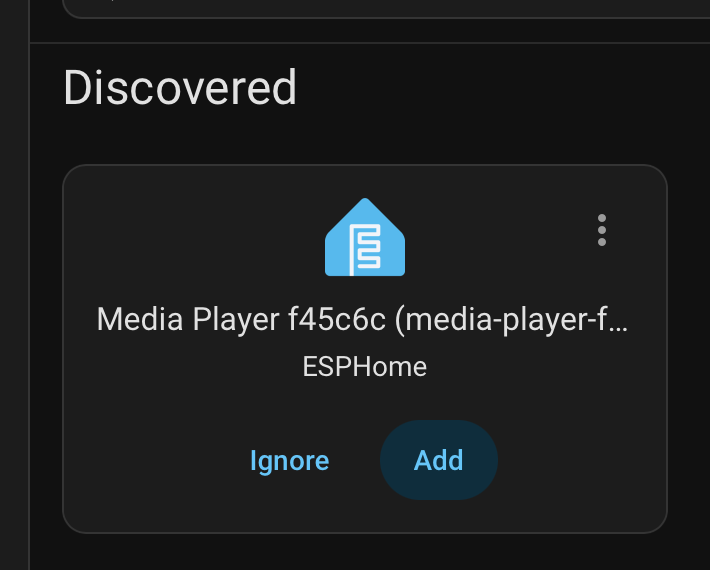
Once added, find the device under Settings → Devices & Services → ESPHome.
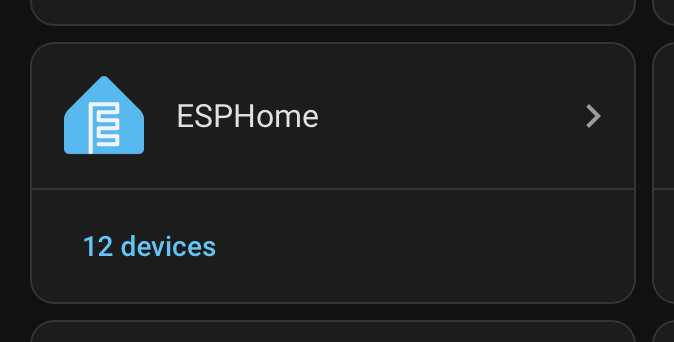
Open the settings page by visiting the device IP address directly in your browser, or go to the device in Home Assistant under Settings → Devices & Services → ESPHome and click Visit. Set Media Player to the
media_playerentity you want to control (e.g.media_player.living_room_speaker).
Enable the media player controls for the entity if prompted.
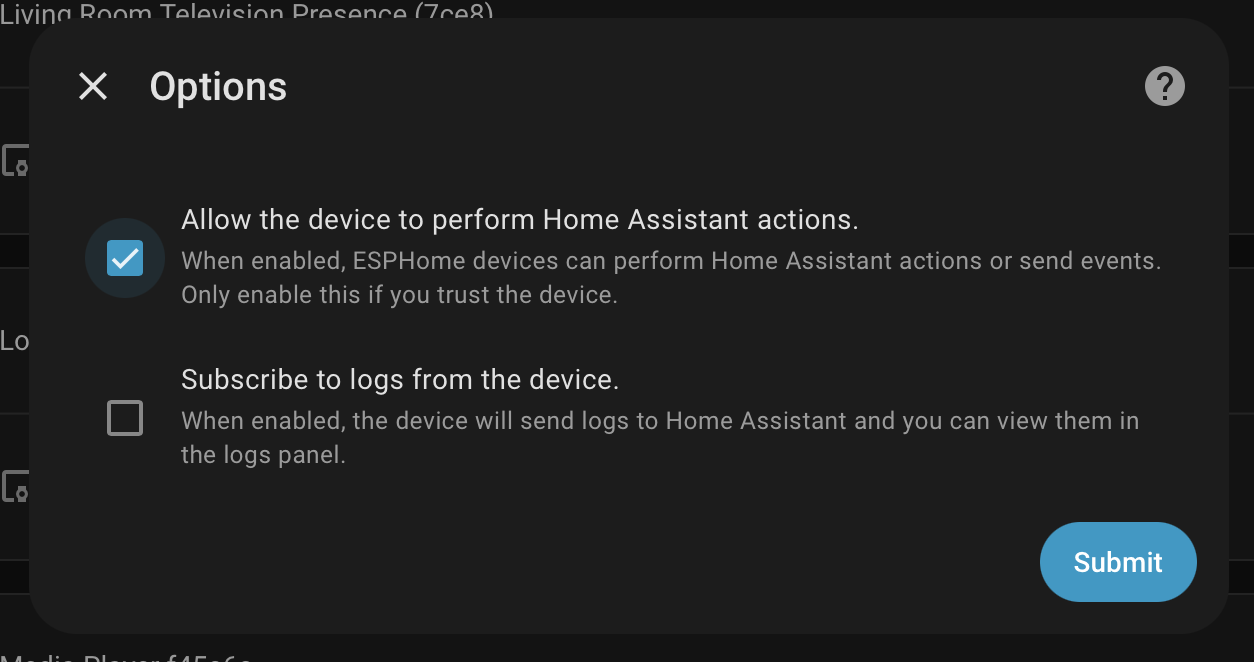
That's it — the screen should start showing now-playing info from your selected media player.
Next steps
- Firmware Updates — automatic over-the-air updates
- Settings — configure brightness, timeouts, and display options
- Speaker Grouping — set up multi-room speaker control
- Troubleshooting — common issues and fixes
