
Trigger
A trigger card is a momentary card with no on/off state. When tapped, it flashes the highlight colour and fires an event to Home Assistant that you can use as an automation trigger.
Trigger cards are useful for things like starting scenes, sending notifications, activating scripts, or anything else you'd start with a single tap.
Running an existing script directly
If you already have a Home Assistant script and just want a card to run it, use an Action card with Run Script. Trigger cards are best when you want to build a Home Assistant automation around a custom panel event.
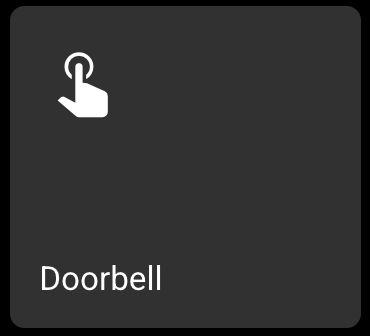
Setting Up a Trigger Card
- Select a card and change its type to Trigger.
- Set a Label — this is shown on the card and also sent to Home Assistant as part of the event data.
- Choose an Icon (defaults to a tap gesture icon).
Trigger cards don't need an entity ID — they don't control a device directly.
How It Works on the Panel
When you tap a trigger card:
- The card instantly flashes the on colour (orange by default).
- The colour fades smoothly back to the off colour over 400 ms.
- An event is fired to Home Assistant with the card's label.
Setting Up an Automation in Home Assistant
Trigger cards fire an event called esphome.push_button_pressed on the Home Assistant event bus. The event name is kept the same so existing automations do not need to change.
On the home screen, the event includes the card's label and slot number. Trigger cards inside subpages send the label.
To create an automation:
- In Home Assistant, go to Settings > Automations & Scenes and create a new automation.
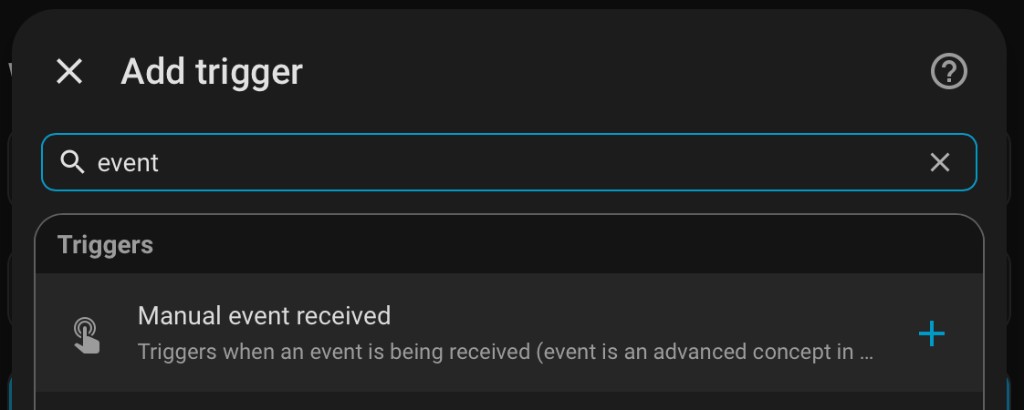
- Add a trigger and search for event. Select Manual event received.
- Set Event type to
esphome.push_button_pressed. - Under Event data, enter the label of your trigger card:
label: Front Door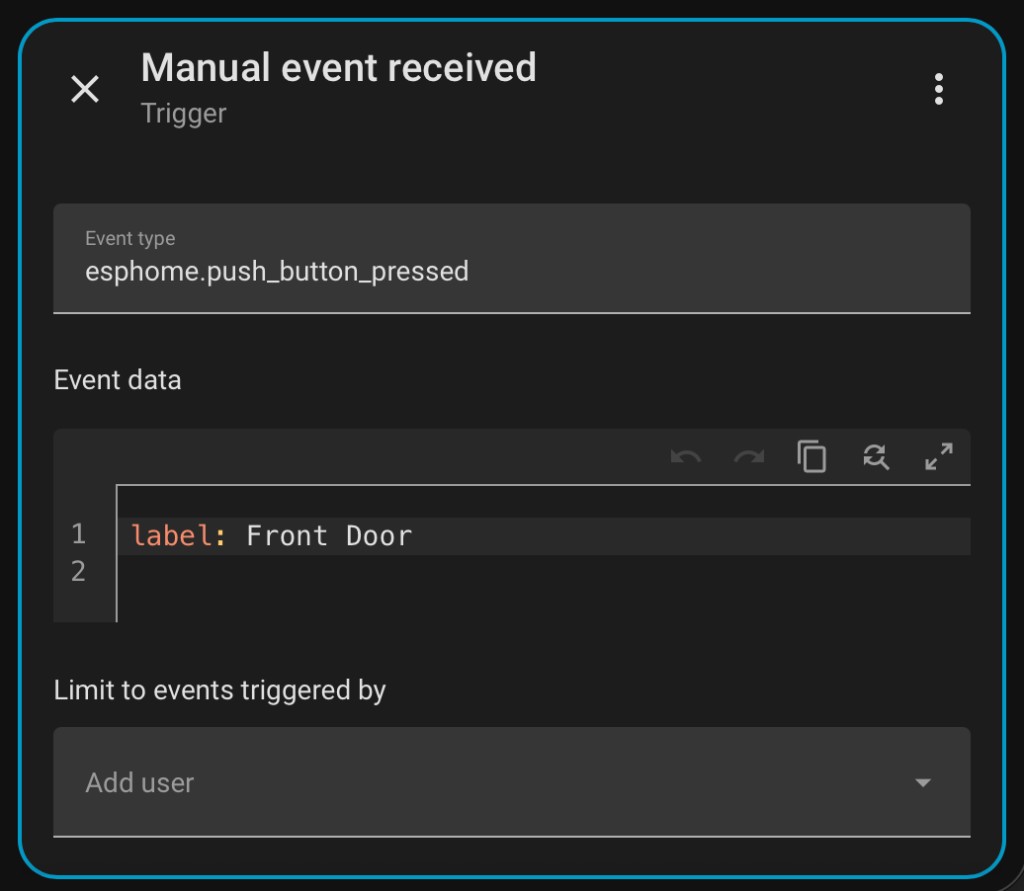
- Add whatever actions you want — turn on a light, send a notification, run a script, etc.
Label-based triggers are resilient
Because the automation triggers on the card's label rather than its position, you can freely move the card to a different slot on the grid without breaking any automations.
Verifying Events Are Firing
If you want to confirm that events are being sent, go to Developer Tools > Events in Home Assistant, type esphome.push_button_pressed in the "Listen to events" field, and click Start listening. Press the trigger card on your panel. Home-screen triggers include the label and slot number; subpage triggers include the label.
Example Event Data
When a home-screen trigger card labelled "Doorbell" on slot 3 is pressed, Home Assistant receives:
event_type: esphome.push_button_pressed
data:
  label: "Doorbell"
  slot: "3"
Requires Home Assistant actions
The panel must be allowed to perform Home Assistant actions for trigger events to work. See Enable Actions for setup instructions.