
Sensor
A Sensor card is read-only. It displays a Home Assistant sensor, binary_sensor, or text_sensor; it can also use a Local Sensor from the panel itself.
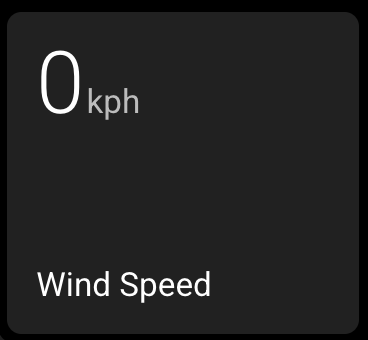
Set Up a Sensor Card
- Select a card and change its type to Sensor.
- Leave Source as Home Assistant, choose the display type, and enter the sensor entity.
- Set a label, unit, and icon as needed.
| Type | What it shows |
|---|---|
| Numeric | A live number, optional unit, and label. Large Sensor Numbers is available on Large cards. |
| Time | A compact duration such as 36m or 1h 30m. Leave Incoming Value Unit on Auto unless the entity does not report a usable unit. |
| Text | The live state beside a chosen icon. Advanced settings can replace up to two raw states with friendlier text. |
| Icon | A normal and optional active icon for a status-style sensor. |
Choose Lit When Active when an active status should use the on colour. It is not available for Time cards. Numeric cards treat values above zero as active; Text and Icon cards follow recognised Home Assistant active states.
Useful Details
- A Time card needs a value in days, hours, minutes, seconds, milliseconds, or microseconds. You can select the unit manually when Auto cannot identify it.
- Unknown, unavailable, or invalid values are left blank rather than guessed.
- Changes made in Home Assistant update the panel automatically.
- To show a device-local sensor, change Source to Local Sensor and follow the Local Sensor setup.
| Example entity | Suggested type |
|---|---|
sensor.living_room_temperature | Numeric |
sensor.ups_battery_runtime | Time |
binary_sensor.laundry_running | Icon |
text_sensor.washing_machine_status | Text |