
Climate
A Climate card controls a Home Assistant climate entity, such as a thermostat, heat pump, air conditioner, or radiator thermostat.
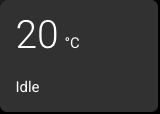
Setting Up a Climate Card
- Select a card and change its type to Climate.
- Enter the Climate Entity, for example
climate.living_room. - Choose Label Display:
- Label shows the card label.
- Status shows the current climate status, such as Off, Heating, Cooling, or Idle.
- Actual shows the current measured temperature.
- Target shows the target temperature.
- If Label is selected, set a Label if you want custom text. The default label is Climate.
- Choose Icon & Temperatures:
- Icon shows the selected icon instead of a large temperature. Choose separate Off Icon and On Icon values if you want the icon to change when the climate entity is on.
- Actual shows the current measured temperature as the large number.
- Target shows the target temperature as the large number.
- Choose Temperature Display:
- 10 shows whole numbers.
- 10.2 shows one decimal place.
- Choose Temperature Step:
- 1 degree changes the target by whole degrees.
- 0.5 degree changes the target by half degrees. Home Assistant limits still apply, and larger Home Assistant
target_temp_stepvalues are respected.
- Use Advanced only if you want to override the minimum or maximum temperature range shown on the panel. Negative values are supported, for example
-25to5for a freezer thermostat.
How It Works on the Panel
The card can show either an icon or a large temperature. It lights up when Home Assistant reports that the climate entity is actively heating, cooling, drying, or running the fan. Idle and off states do not show as active. Off always takes priority over previously reported activity, while Auto can be either active or idle. An idle climate entity in an enabled mode keeps its On icon but does not light up the card.
Tapping the card opens a climate control popup. From there, you can:
- Change the target temperature.
- Adjust separate low and high targets when Home Assistant reports a target temperature range.
- Change HVAC mode, such as Off, Heat, Cool, Heat/Cool, Auto, Dry, or Fan.
- Change fan, vertical swing, horizontal swing, or preset modes when the entity exposes those options.
The card follows Home Assistant attributes such as current temperature, target temperature, min/max temperature, target step, HVAC mode, fan mode, vertical and horizontal swing modes, and preset mode.
Low and High Targets
For climate entities with separate heating and cooling targets, the popup shows both temperatures together. The orange section and handle represent the low heating target; the blue section and handle represent the high cooling target. The neutral gap between them is the temperature range where neither target is active.
Tap either temperature, drag its handle, or tap near a handle on the arc to select it. The plus and minus buttons change the selected target, and the two targets always remain at least one configured temperature step apart.
- Cool and Dry select the high target when the popup opens or the mode changes.
- Heat selects the low target.
- Auto, Heat/Cool, and Off keep the target you selected previously.
Both targets remain visible in every mode, including Off. If Home Assistant reports range support before both target values are available, the missing value appears as -- and adjustments remain disabled until the complete range arrives. Ordinary single-target thermostats keep the standard one-handle popup.
Physical device testing
Automated checks verify the climate logic, documentation, and firmware builds, but they cannot confirm how a specific heating or cooling unit responds. Test target changes on the physical device before relying on the new controls.
Requires Home Assistant actions
Climate cards send Home Assistant climate actions from the panel. If controls do not respond, check Enable Actions.