
7-inch JC1060P470 V1
The V1 / original panel has an unmarked case: it does not say V1. If you need to confirm it, disconnect power and remove the back. A screen-board date code earlier than 2622 identifies V1.
Match the firmware to the panel
The wrong profile leaves a white screen with a vertical noise band. Reflash the matching profile over USB to recover.
Install
Connect the display to your computer with a USB-C data cable plugged into the port shown below, then install.
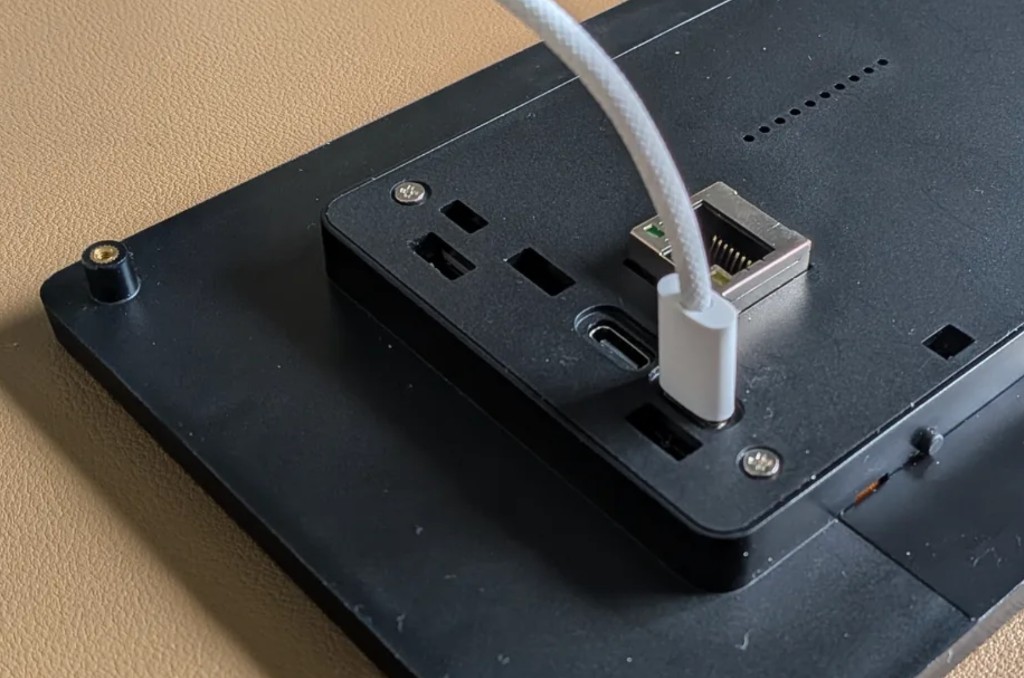
This P4 panel uses a separate ESP32-C6 Wifi processor. If it repeatedly disconnects, disappears from Home Assistant, or cannot finish initial setup, use the USB C6 recovery installer.
For WiFi setup and Home Assistant pairing, follow the Install guide.
ESPHome Manual Setup
substitutions:
  name: "office-screen"
  friendly_name: "Office Screen"

wifi:
  ssid: !secret wifi_ssid
  password: !secret wifi_password

packages:
  setup:
    url: https://github.com/jtenniswood/espcontrol/
    file: devices/guition-esp32-p4-jc1060p470/packages.yaml
    refresh: 1sec
Advanced Ethernet option
For a V1 Ethernet model, use this package with the Ethernet substitutions:
substitutions:
  name: "office-screen"
  friendly_name: "Office Screen"
  network_transport: ethernet
  disable_updates: "true"

packages:
  setup:
    url: https://github.com/jtenniswood/espcontrol/
    file: devices/guition-esp32-p4-jc1060p470/packages.yaml
    refresh: 1sec
This Ethernet option is for advanced manual installs only. It builds an Ethernet-only firmware: WiFi, captive portal, the WiFi setup hotspot, and Bluetooth proxy are not included, and the ESP32-C6 hosted WiFi/Bluetooth co-processor is kept off. The Ethernet build also uses a higher backlight PWM frequency on this panel, which avoids the shimmer seen during hardware testing with wired networking enabled. The disable_updates: "true" substitution removes EspControl's GitHub firmware update checker and update controls, while leaving ESPHome OTA available for manual installs.
Use USB when switching a display between the WiFi and Ethernet firmware variants. OTA updates can fail during that change because the network transport changes.
For the full manual setup notes, see Manual Setup.